Maxthon Snap Screen
Capture Your Screen Effortlessly
Save Specific Regions or Entire Webpages
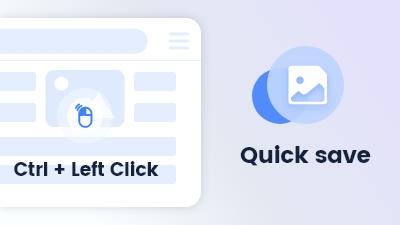
Maxthon Browser's Snap Screen feature enables you to capture specific regions or save entire webpages with ease. Whether you need to save a portion of the screen for a project or capture a full webpage for reference, Snap Screen provides a convenient solution. With intuitive controls, you can quickly select the area you want to capture and save it in your preferred format. Maxthon's Snap Screen enhances your productivity by making screen capture simple and efficient, ensuring you can easily capture and save the web content you need.

Snap Screen is incredibly useful for capturing specific parts of a webpage. It's quick and easy to use.
Mar 2021

I love the Snap Screen feature. It allows me to take screenshots of entire pages or just sections.
Aug 2021

Great for creating tutorials and guides. The ability to capture the whole page is fantastic.
Feb 2022

Snap Screen is my go-to tool for screenshots. It's very reliable and the quality is excellent.
Oct 2023

The Snap Screen feature works perfectly. It's easy to capture and save images directly from the browser.
May 2024
Snap Screen is a feature in Maxthon that allows you to capture specific regions or save entire webpages as screenshots.
To use Snap Screen, click on the Snap Screen icon in the toolbar or press the shortcut key to start capturing a region or the entire page.
Yes, you can edit the screenshots after capturing them using the built-in editor. You can add annotations, crop, and more.
Screenshots are saved in your designated folder. You can change the save location in the Snap Screen settings.
Snap Screen is primarily available on the desktop version of Maxthon. Mobile users can use the native screenshot functionality of their device.

Maxthon's Resource Sniffer tool detects and allows easy downloading of media files and resources from web pages.
Learn more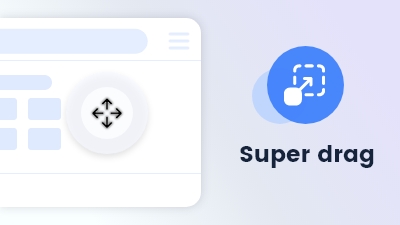
Effortlessly navigate or search by dragging keywords or links or files anywhere on the page.
Learn more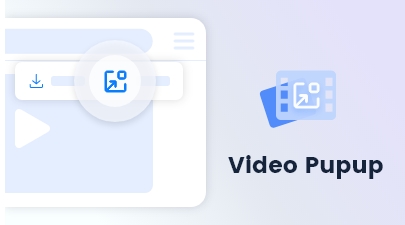
Maxthon's video popup feature on the video floatbar allows for a detachable, resizable viewing window.
Learn more