Browser Locking
Secure Your Browser Instantly
Lock Your Screen with a Simple Shortcut
Maxthon Browser introduces a powerful Browser Locking feature, allowing you to secure your browser with a simple shortcut. By pressing Ctrl + Shift + L, you can instantly lock your browser screen, protecting it with a password. This feature is perfect for maintaining privacy and security, especially when you need to step away from your computer. Browser Locking prevents unauthorized access to your browsing session, ensuring that your personal information and ongoing activities remain confidential. Experience peace of mind with Maxthon's Browser Locking, knowing that your browser is protected at all times.

Browser locking feature is fantastic! It ensures that my data is secure when I step away from my desk.
Mar 2024

I love the convenience of the Ctrl + Shift + L shortcut to lock my browser. A must-have for privacy.
Sep 2023

Great feature for shared computers. The ability to customize the password is a nice touch.
Nov 2023

Maxthon's browser locking feature is easy to use and very effective at keeping my information secure.
Feb 2024

It's reassuring to know that I can lock my browser with a simple shortcut. Highly recommend for added security.
May 2024
To lock your browser, press Ctrl + Shift + L. You can customize this shortcut in the settings if needed.
Yes, you can set a custom password. Go to the Browser Locking settings to set or change your password.
If you forget your password, you will need to reset it using your Maxthon account credentials.
No, the Browser Locking feature is currently only available on the desktop version of Maxthon.
No, Browser Locking does not log you out of your accounts. It simply locks the browser to prevent unauthorized access.
Maxthon browser's Incognito mode ensures private browsing by not storing your history, cookies, or search data.
Learn more
Maxthon browser offers seamless ad-blocking functionality across both its mobile and desktop versions.
Learn more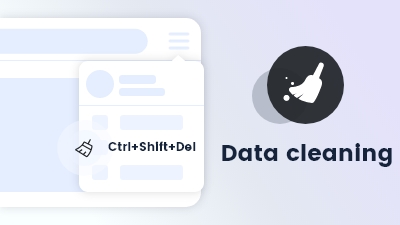
Data cleaning enables automatic removal of browsing history and cookies upon exiting the browser.
Learn more
Maxthon browser's Anti-tracking feature blocks trackers and protects your online activity from being monitored.
Learn more